
How to Update Your Payment Method in Spark
Keeping your payment details up to date ensures uninterrupted access to Spark’s features and services. Follow the simple steps below to add or update your payment method.
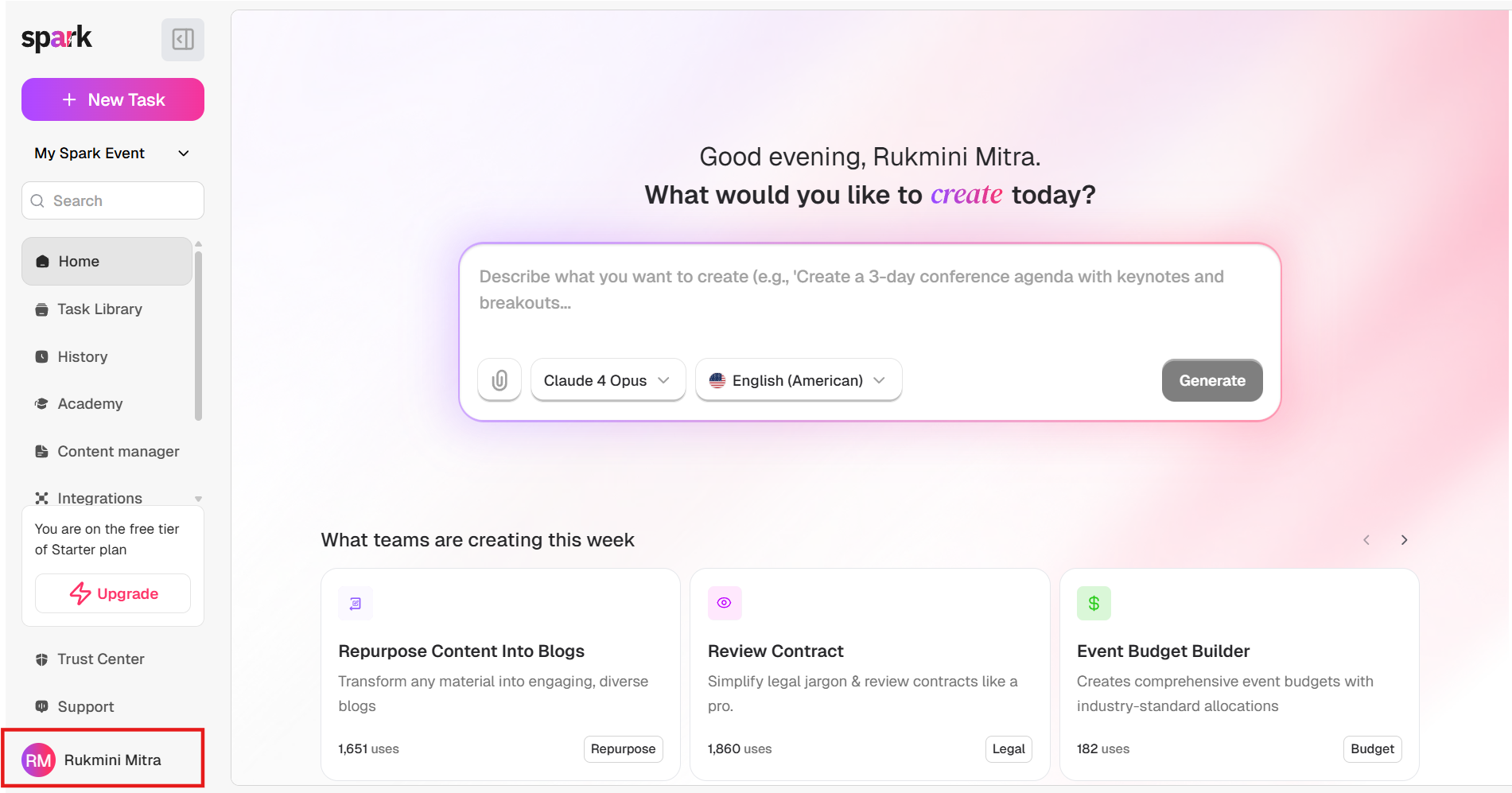
Step 1: Open Your Account Menu
- Log in to your Spark dashboard.
- Look for your profile icon with your initials (e.g., RM) in the bottom-left corner.
- Click on your name to open the account menu.
From the menu, you’ll see options like Profile, Organisation, Users, Plans, and Billing.
Step 2: Go to Billing
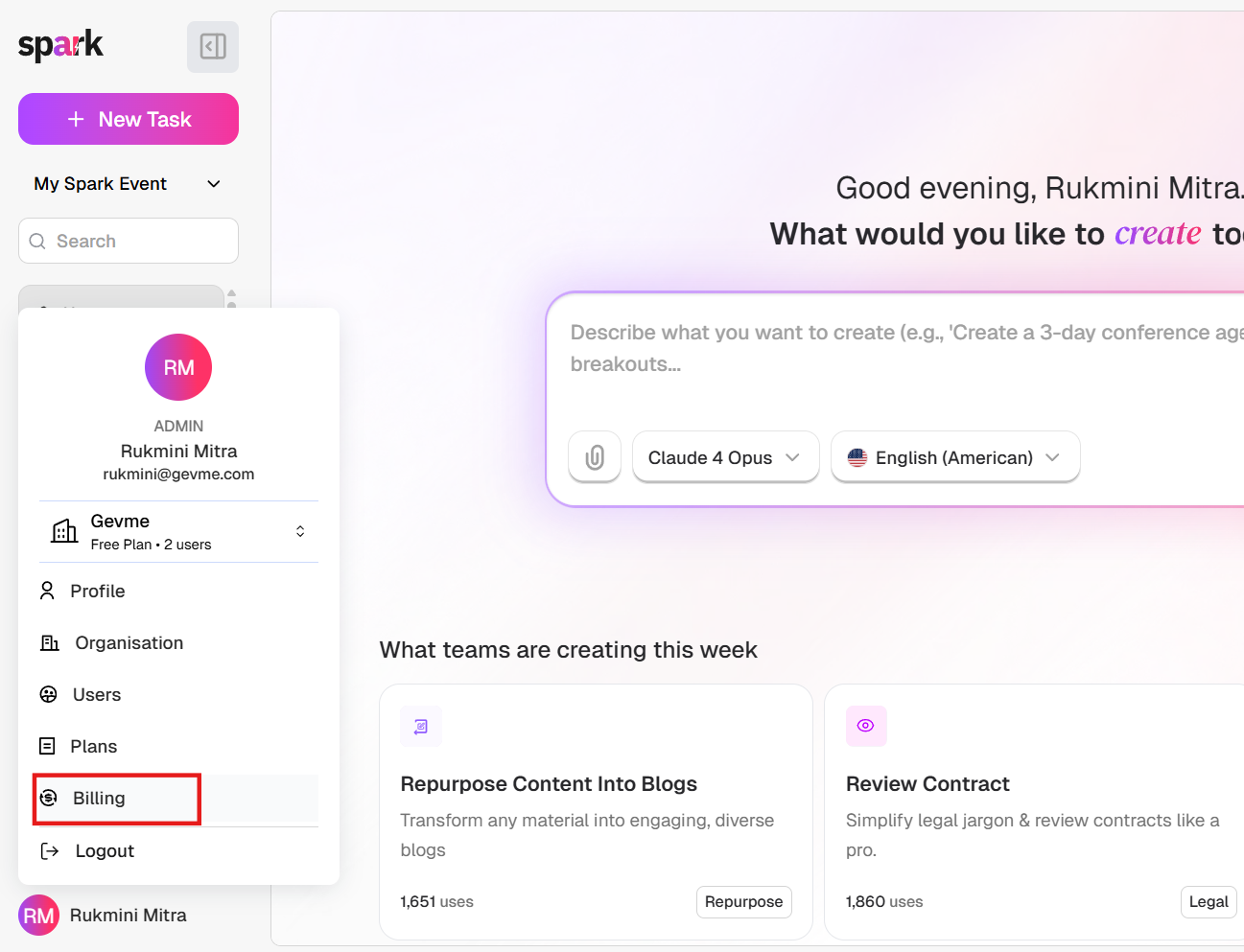
- Click on Billing in the account menu.
- This will open the Settings window with the Billing section selected.
Here, you’ll see different options such as:
- Account Information
- Subscription
- Billing History
- Payment Method
Step 3: Manage Payment Methods
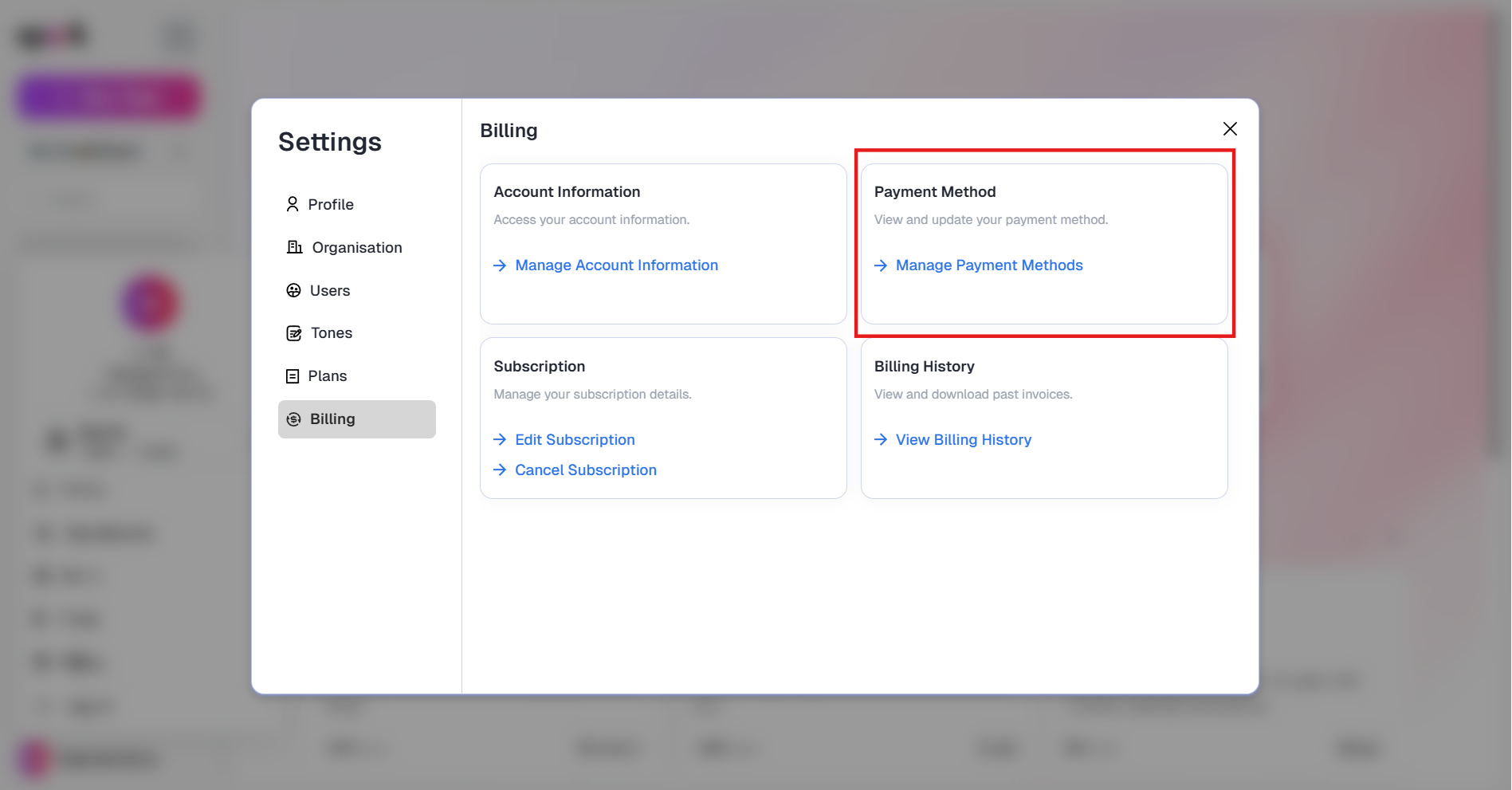
- In the Payment Method section, click on Manage Payment Methods.
- This opens the payment management page, where you can add or update your card details.
Click Add a payment method to open the payment form.
You’ll need to enter:
- First Name & Last Name
- Card Number
- Expiry Date
- CVV
- Address Line 1
- Address Line 2 (Optional)
- City
- Zip Code
- State
- Country
At the bottom, you’ll see an authorisation message allowing Gevme to save and use your payment method for subscription charges securely.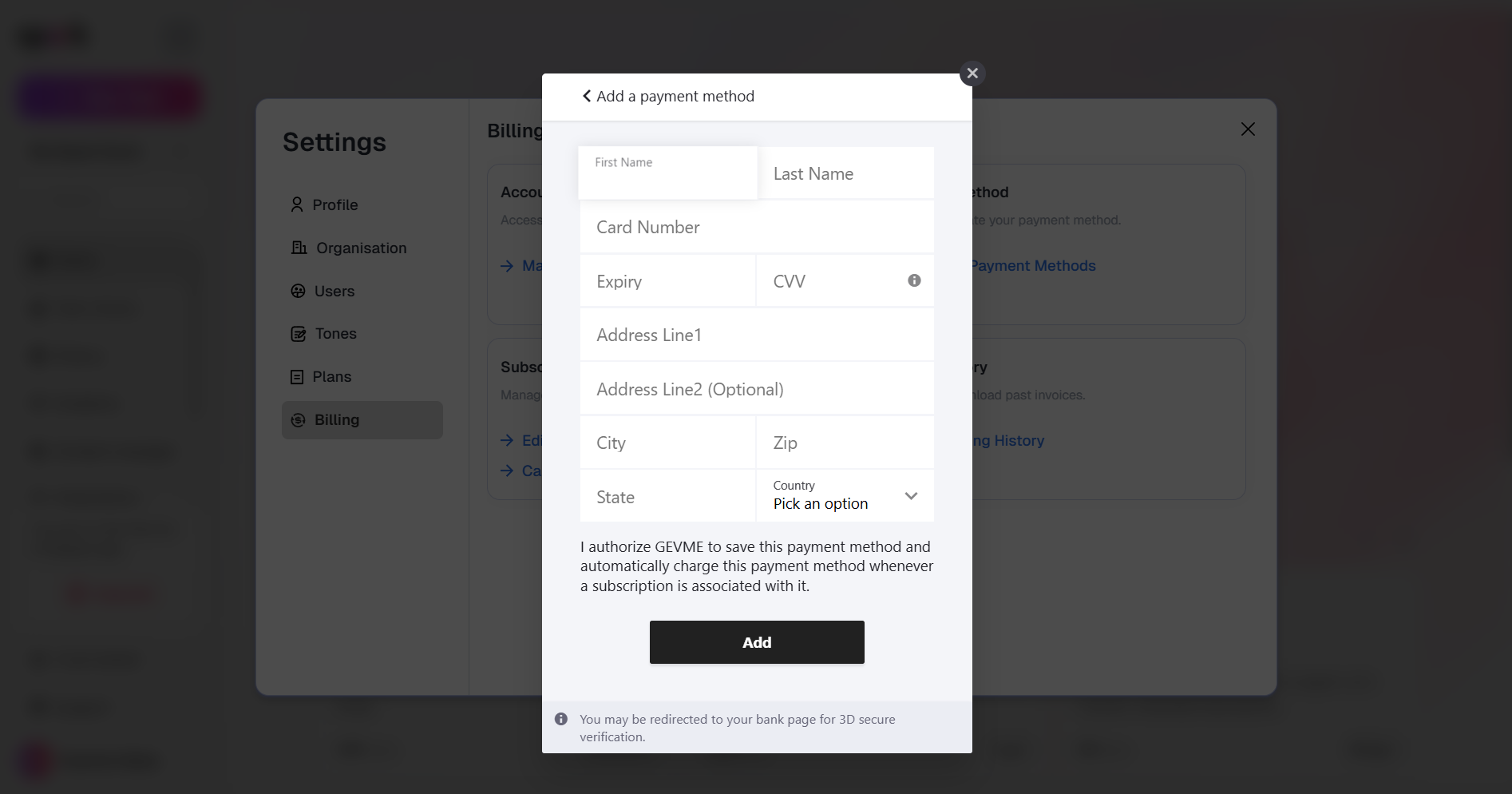
Step 5: Save Your Details
- Review all the information you entered.
- Click Add to save the payment method.